
 How To While using IE Firefox or Opera you will see an icon on the tab when u visit a page.This is called favicon.By default blogspot blogs have a favicon which looks ugly.See it here at the top of the post.So how to remove it?
 Template Hacks. A few days back, I published the JavaScript version of the Recent Posts widget, and I loved the Grid Layout of the Widget. One of the most popular Widgets used by Bloggers is Blogger’s Official Popular Post Widget. So I decided to edit the gadget, and give it the Grid Style.
  |  |
How To Apply This Tip Hack?
So Here are the Steps to make your Popular Posts Widget act like an Image Grid
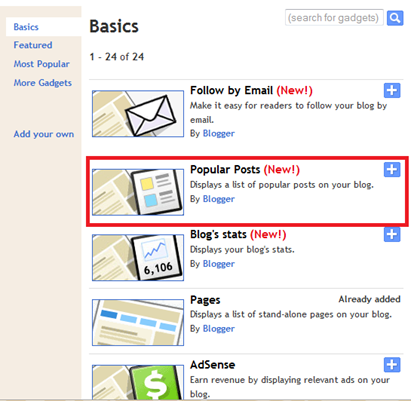
1. Go to the Layout Page and add the Popular Posts Gadget, if you haven’t already added it.
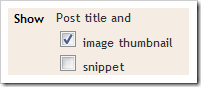
2. Edit the Gadget Settings so that it displays the Thumbnails and not the Snippet
3. Now Go to Template/Design > Edit HTML . DO NOT Click on the Expand Widget Templates checkbox. Leave it unchecked, and look for PopularPosts1 (Do a Ctrl +F to find it in your template) and you will get some line like this
<b:widget id='PopularPosts1' locked='false' title='Popular Posts' type='PopularPosts'/>
4. Change This line to
<b:widget id='PopularPosts1' locked='false' title='Popular Posts' type='PopularPosts'>
<b:includable id='main'>
  <b:if cond='data:title'><h2><data:title/></h2></b:if>
  <div class='widget-content popular-posts'>
    <ul>
      <b:loop values='data:posts' var='post'>
      <li>
        <b:if cond='data:showThumbnails == "false"'>
          <b:if cond='data:showSnippets == "false"'>
            <!-- (1) No snippet/thumbnail -->
            <a expr:href='data:post.href'><data:post.title/></a>
          <b:else/>
            <!-- (2) Show only snippets -->
            <div class='item-title'><a expr:href='data:post.href'><data:post.title/></a></div>
            <div class='item-snippet'><data:post.snippet/></div>
          </b:if>
        <b:else/>
          <b:if cond='data:showSnippets == "false"'>
            <!-- (3) Show only thumbnails -->
            <div class='item-thumbnail-only'>

                <div class='item-thumbnail'>
   <a expr:href='data:post.href' expr:title='data:post.title'>
    <b:if cond='data:post.thumbnail'>
                    <img alt='' border='0' expr:height='data:thumbnailSize' expr:src='data:post.thumbnail' expr:width='data:thumbnailSize'/>
       <b:else/>
        <img alt='' border='0' expr:height='data:thumbnailSize' src='http://www.matrixar.com/-erTXCq61ULM/TmHYAQBZ0GI/AAAAAAAACCs/6cBX54Dn6Gs/s72-c/default.png' expr:width='data:thumbnailSize'/>
       </b:if>
                  </a>
                </div>
             </div>
            <b:else/>
            <!-- (4) Show snippets and thumbnails -->
            <div class='item-content'>
              <b:if cond='data:post.thumbnail'>
                <div class='item-thumbnail'>
                  <a expr:href='data:post.href' target='_blank'>
                    <img alt='' border='0' expr:height='data:thumbnailSize' expr:src='data:post.thumbnail' expr:width='data:thumbnailSize'/>
                  </a>
                </div>
              </b:if>
              <div class='item-title'><a expr:href='data:post.href'><data:post.title/></a></div>
              <div class='item-snippet'><data:post.snippet/></div>
            </div>
            <div style='clear: both;'/>
          </b:if>
        </b:if>
      </li>
      </b:loop>
    </ul>
    <b:include name='quickedit'/>
  </div>
</b:includable>
</b:widget>
5. Save your Template
6. Now Go to Template Designer > Advanced > Add CSS and paste the following CSS snippet there, and apply to your Blog
.popular-posts .item-thumbnail{float:left;}
.popular-posts ul{padding-left:0px;}
.popular-posts ul li {list-style-image: none;list-style-type: none;display:inline;}
The image URL present in the Widget Code is the Default Thumbnail which will be displayed if the post doesn’t have a thumbnail associated with it. You can modify it to get a custom default thumbnail. You can spice up the CSS to make the grid look more eye catching. I would leave that to you :)
Reverting Back to the old one
If you are not satisfied by the way it looks, then revert it back. Here are the steps:
- Just Remove the Popular Posts Widget from the Layout Page.If you need the original version, then add it back again
- Remove the CSS which you added to Template Designer > Advanced > Add CSS
- That’s it.
I think that this Hack would work out well on Recipe and Photography Blogs. Try it out, and let me know if it is useful :)
Source: http://www.bloggerplugins.org